
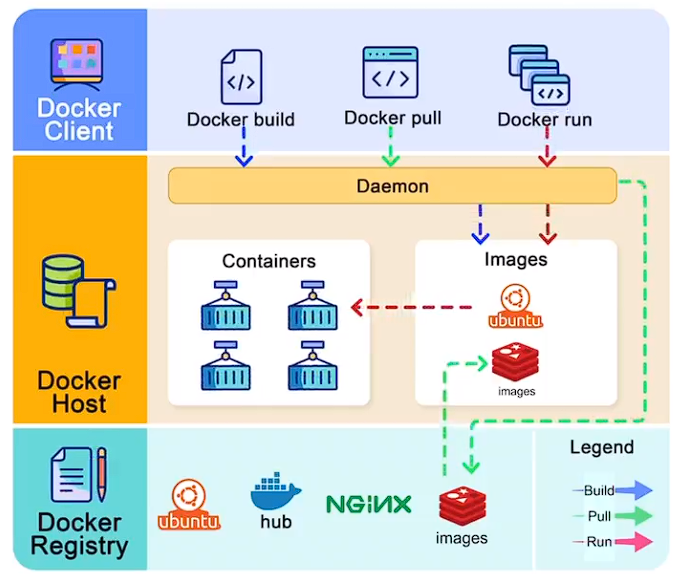
Create a simple Nginx web server image and run it in a container on your local Docker host, and optionally push it to a Docker registry.
Technology - OS, Docker, Nginx, DNS
Here's a step-by-step workflow:-
GCP Cloud + Ubuntu server + Docker container + Nginx database + Sample Website
- Install Docker: Install Docker on your Ubuntu system. You can use the following commands in the terminal: bash
🔹sudo apt update 🔸sudo apt install -y docker.io
🔹sudo systemctl enable --now docker
Verify that Docker is installed and running by
🔸running docker --version
- Create a Dockerfile: Create a directory for your Docker project, and inside it, create a file named Dockerfile (with no file extension).
Add the following content to your Dockerfile to create an Nginx image: Dockerfile
🔸FROM nginx: latest COPY index.html /usr/share/nginx/html/
Create an index.html file in the same directory if it doesn't already exist.
(HTML code -- First downloads link any sample website and paste your command line using wget command and downloads then docker container to publish ex. docker run -it -d -p 80:80 /root/filename.html /usr/share/nginx/html/filename.html nginx and copy public ip:80 paste webserver. issue check security edit inbound rule)
- Build the Docker Image: In the same directory as your Dockerfile, run the following command to build the Docker image: bash
🔹docker build -t my-nginx-image.
This command builds an image named "my-nginx-image" using the current directory as the build context.
- Run a Docker Container: Run a container from your image with the following command: bash
🔸docker run -d -p 80:80 my-nginx-image
This command starts a detached (-d) container and maps port 80 of your host to port 80 of the container.
Access Nginx: Open a web browser and navigate to http://localhost or your server's IP address to see the Nginx default page.
Docker Registry (optional): If you want to share your image with others or deploy it on another system, you can push it to a Docker registry like Docker Hub. First, you need to create a Docker Hub account and log in using a Docker login.
Tag your image with your Docker Hub username and repository name: bash
🔸docker tag my-nginx-image your-docker hub-username/my-nginx-image
Docker Registry (optional): If you want to share your image with others or deploy it on another system, you can push it to a Docker registry like Docker Hub. First, you need to create a Docker Hub account and log in using a Docker login.
Tag your image with your Docker Hub username and repository name: bash
🔸docker tag my-nginx-image your-docker hub-username/my-nginx-image
This workflow outlines the process of creating a Docker image with an Nginx web server, running it as a container, and optionally pushing it to a Docker registry for distribution. It can serve as a foundation for more complex Docker projects.